
Create a Knowledge Base
Build a knowledge base by uploading documents and connecting Google Drive for your AI teammates to reference.
A knowledge base is a collection of documents that your AI teammates search when answering questions. Knowledge bases are managed at the company level — one knowledge base can be shared across multiple teammates.
Supported File Types
| Category | Formats |
|---|---|
| Documents | PDF, DOC, DOCX, TXT, MD, JSON |
| Spreadsheets | XLS, XLSX, CSV |
| Presentations | PPT, PPTX |
| Images | PNG, JPG, JPEG, GIF, WEBP |
You can upload up to 100 files per batch.
Step 1: Open Knowledge Bases
Navigate to prime.ventus.ai/teammate/knowledge.
This page lists all knowledge bases in your organization, including document counts and which teammates have access.
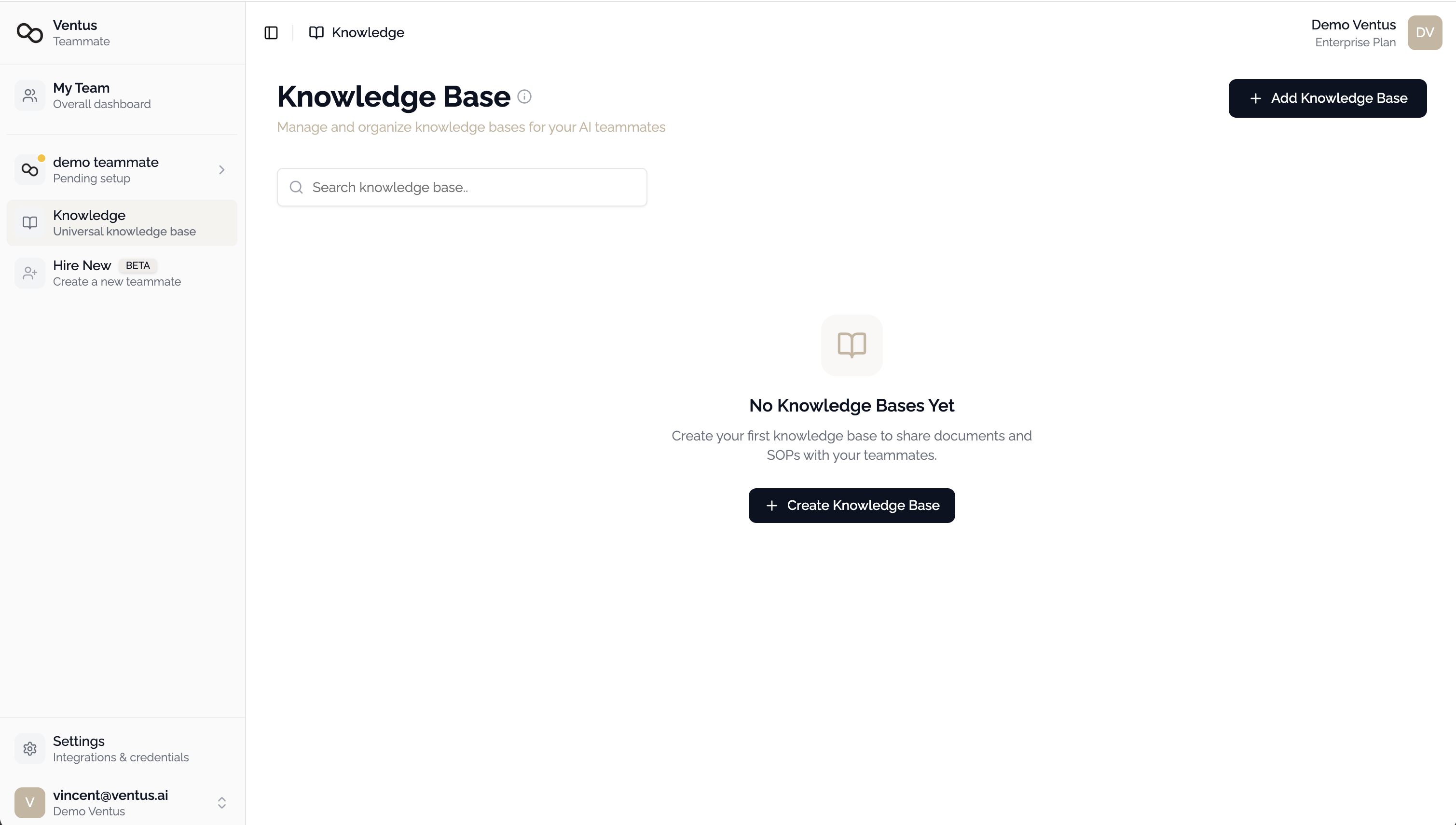
Step 2: Create a Knowledge Base
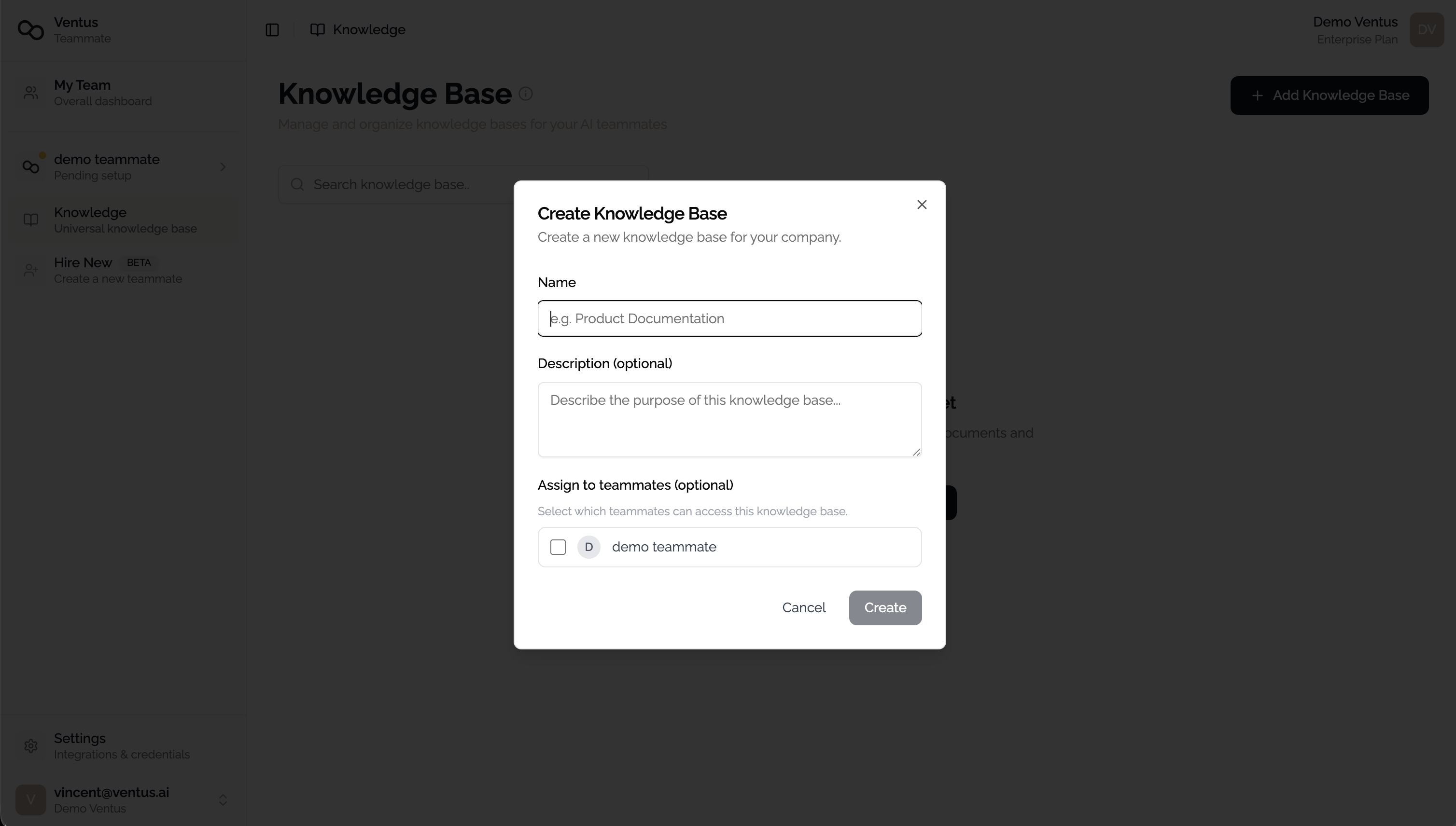
Click the + button in the top-right corner.
| Field | Required | Description |
|---|---|---|
| Name | Yes | A descriptive name (e.g., "HR Policies", "Product FAQ"). Max 255 characters. |
| Description | No | Helps teammates and team members understand the scope of this knowledge base. Max 500 characters. |
Click Create to save.
Step 3: Add Documents
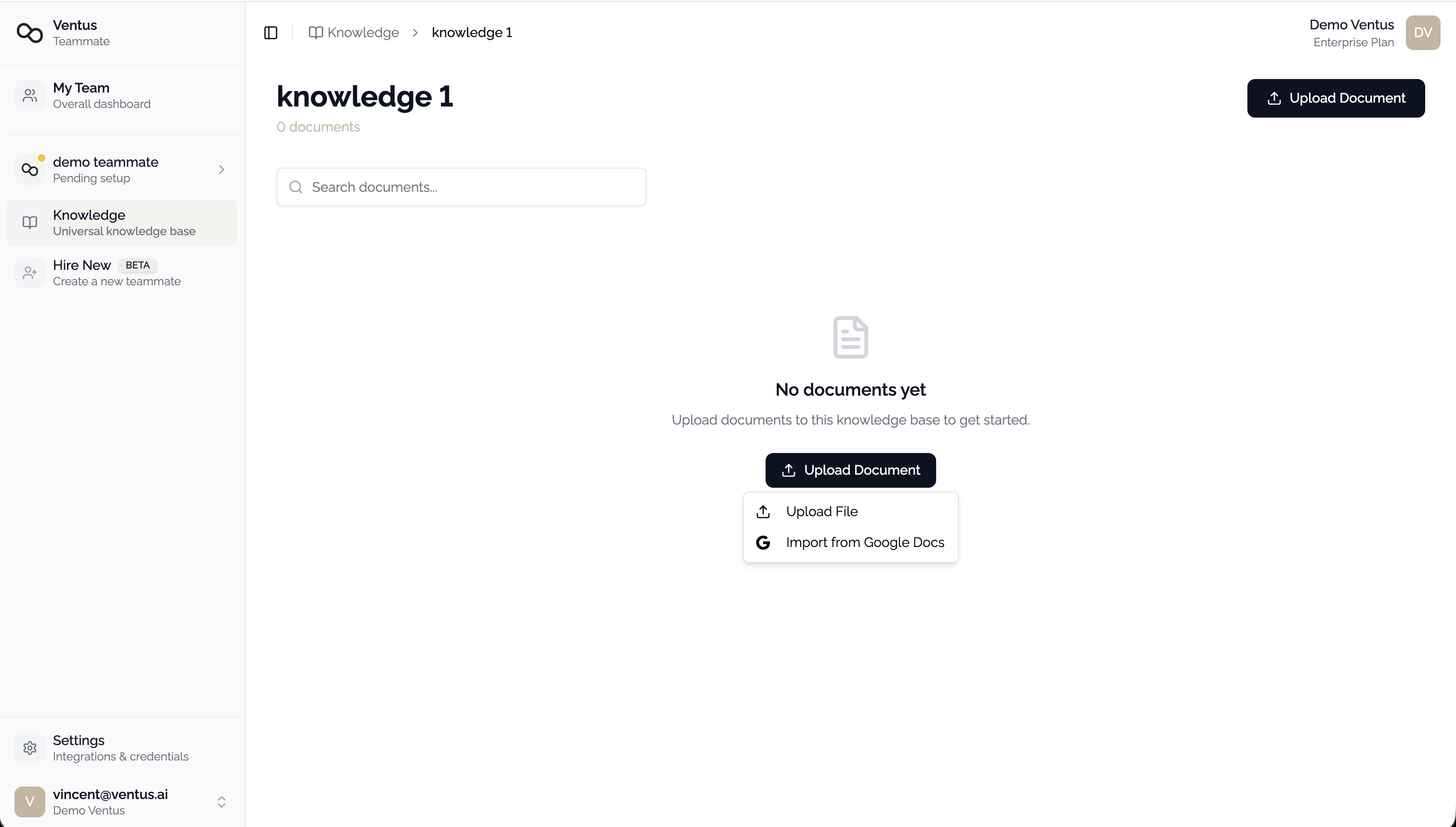
Open the knowledge base and click Upload Document. You have two options:
Option A: Import from Google Drive (Recommended)
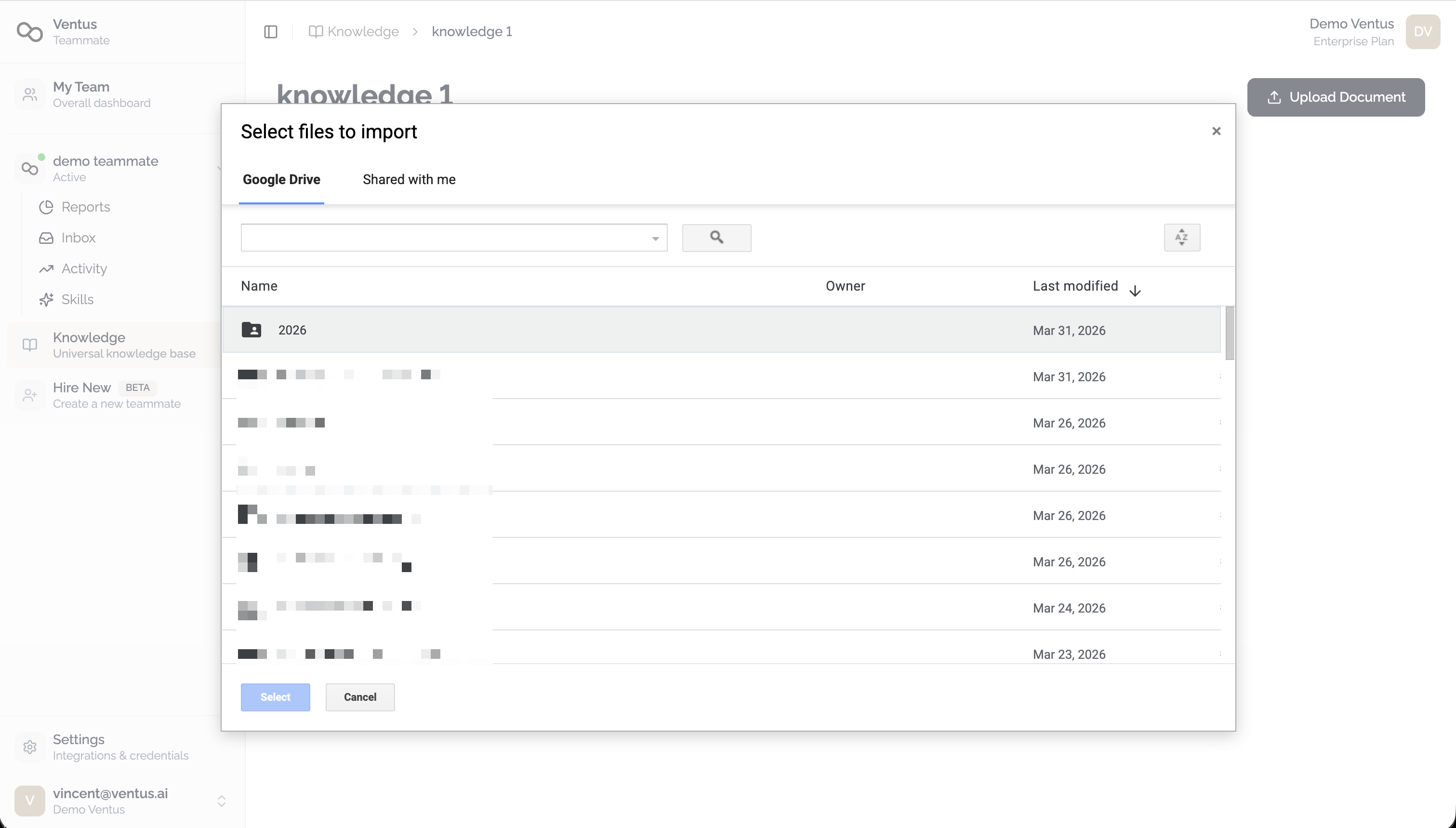
Connect your Google account to import documents directly from Google Drive, Google Docs, and Google Sheets.
Benefits of Google Drive import:
- Auto-sync — Changes made in Google Drive are automatically reflected in the knowledge base
- Centralized management — Maintain a single source of truth in Google Drive
- Bulk import — Select multiple files and folders at once
To connect Google Drive:
- Navigate to prime.ventus.ai/teammate/settings?tab=integrations
- Find Google Docs under the Knowledge section and click Connect
- Complete the Google OAuth authorization flow
- Return to your knowledge base and select Import from Google Drive
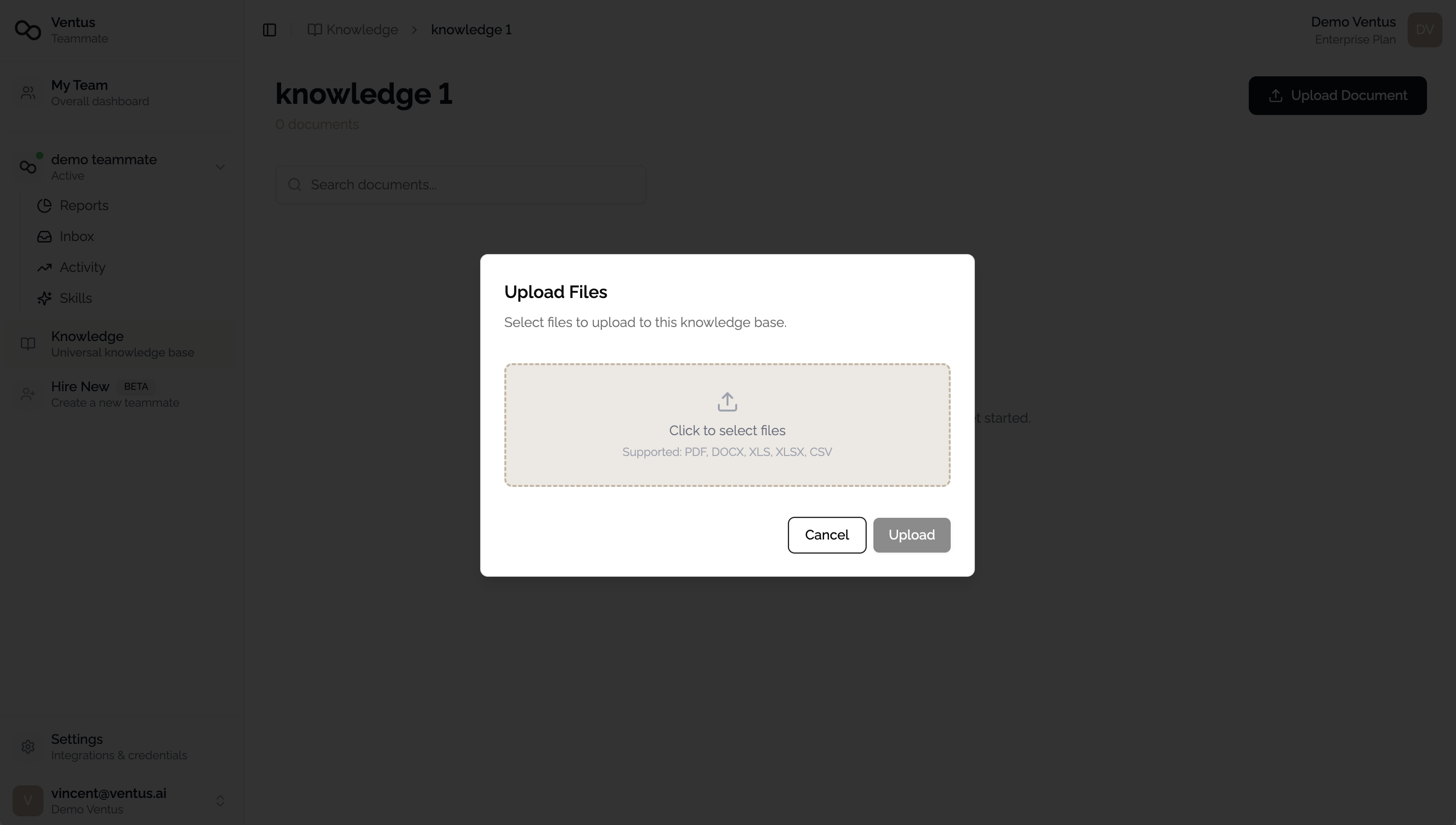
Option B: Upload Files
Drag and drop files or click to select from your computer. Uploaded files are processed and indexed automatically.
Google Drive integration requires the Edit Integrations permission. Contact your administrator if you do not see the Connect option.
File Indexing Status
After uploading or importing, each file goes through an indexing pipeline:
| Status | Description |
|---|---|
| Pending | Queued for processing |
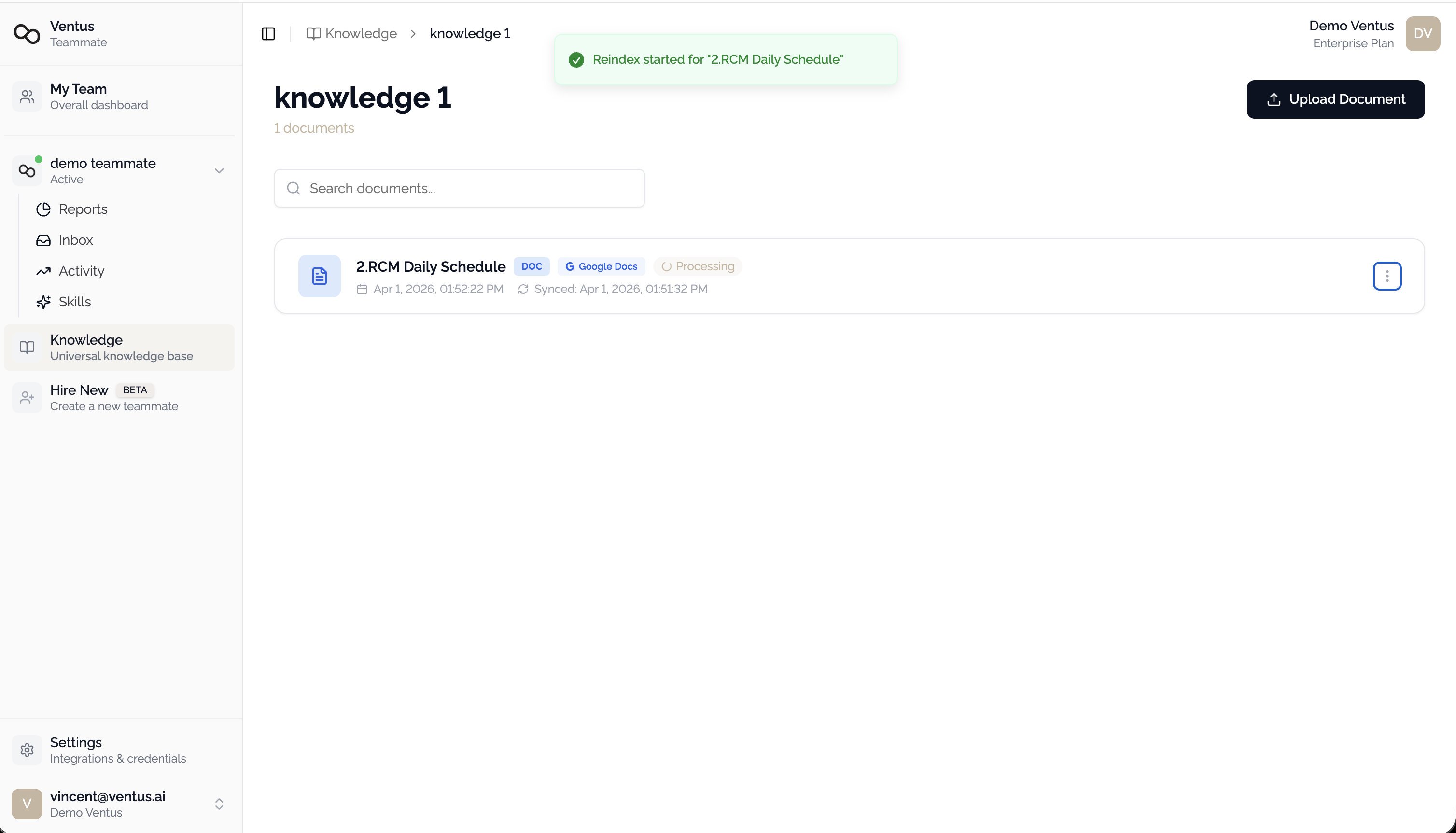
| Processing | Being parsed and indexed |
| Completed | Ready — searchable by teammates |
| Failed | An error occurred. Review the status message and try re-uploading or reindexing. |
Step 4: Manage Files
Once files are indexed, the following actions are available from the file's action menu:
| Action | Description |
|---|---|
| Edit | Open the built-in editor to review or modify parsed content |
| Reindex | Re-process the file after content updates |
| Export | Download the parsed content as PDF, DOCX, XLSX, or CSV |
| Delete | Remove the file from the knowledge base |
Next Steps
- Grant Knowledge Access to connect this knowledge base to one or more teammates
- Create a Teammate if you have not already