
Create a Teammate
Create an AI teammate and configure its name, description, and behavioral persona.
Step 1: Start the Hiring Flow
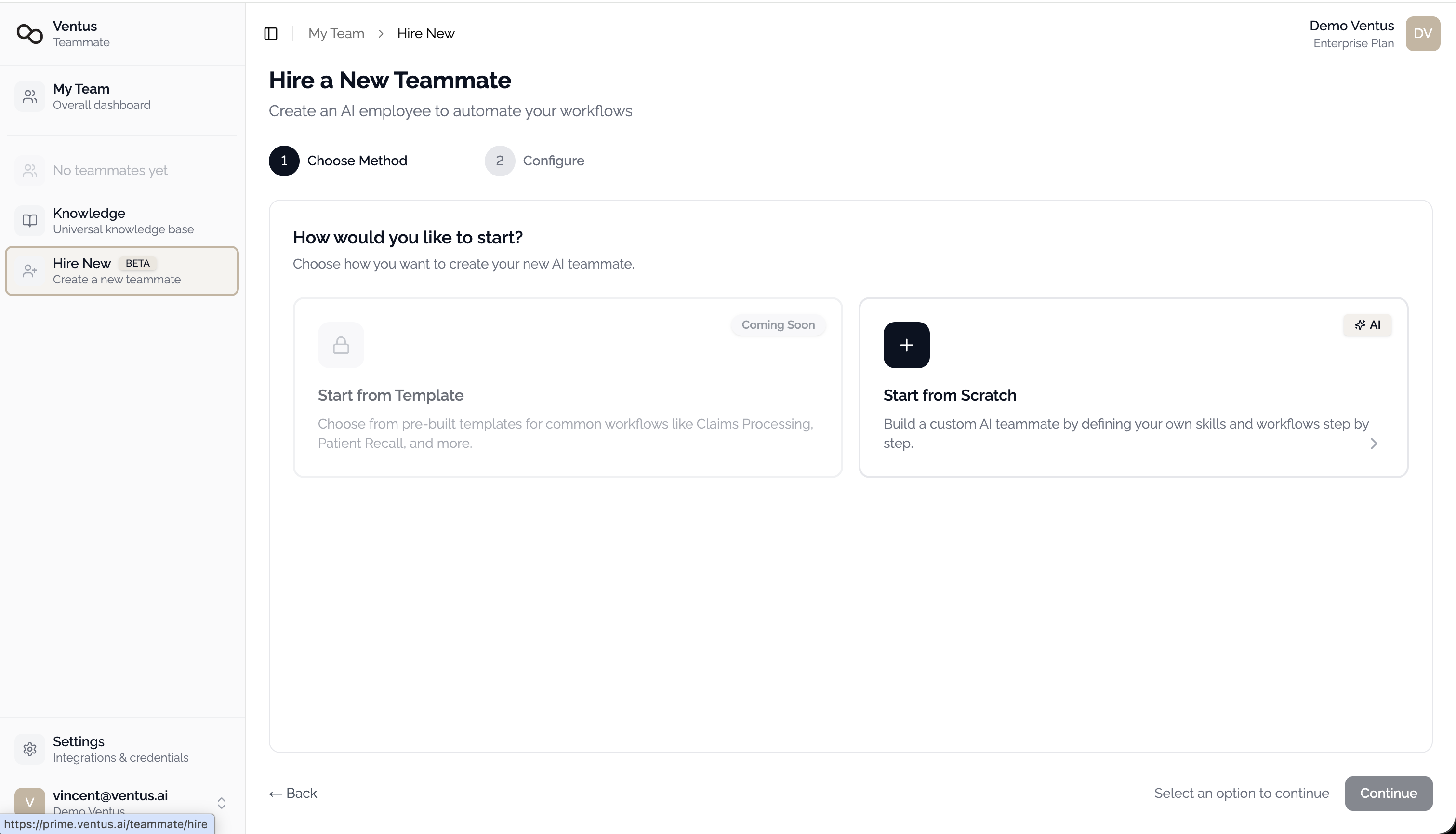
Navigate to prime.ventus.ai/teammate/hire, or click Hire Teammate from the My Team dashboard.
You will see two options:
| Option | Description |
|---|---|
| Start from Template | Choose from pre-built teammate templates (coming soon) |
| Start from Scratch | Build a fully custom teammate |
Select Start from Scratch and click Continue.
Step 2: Configure the Teammate
Fill in the teammate profile:
| Field | Required | Description |
|---|---|---|
| Teammate Name | Yes | Display name visible in channels and dashboards (e.g., "Claims Processor", "HR Assistant"). Max 255 characters. |
| Description | No | Brief summary of the tasks and workflows this teammate handles. Max 500 characters. |
| Persona | No | Behavioral instructions injected into the AI's system prompt. Controls tone, scope, and response style. |
Writing an Effective Persona
The persona defines how your teammate behaves. Be specific about:
- Role boundaries — Topics the teammate should and should not address
- Tone and style — Formal, conversational, concise, or detailed
- Operational instructions — Systems, portals, or escalation paths the teammate should reference
Example:
You are the HR assistant for Acme Corp. Only answer questions related to HR policies, benefits, and onboarding. Be professional and friendly. Always cite the specific policy document when referencing company policies. If a question falls outside HR scope, direct the user to the appropriate department.
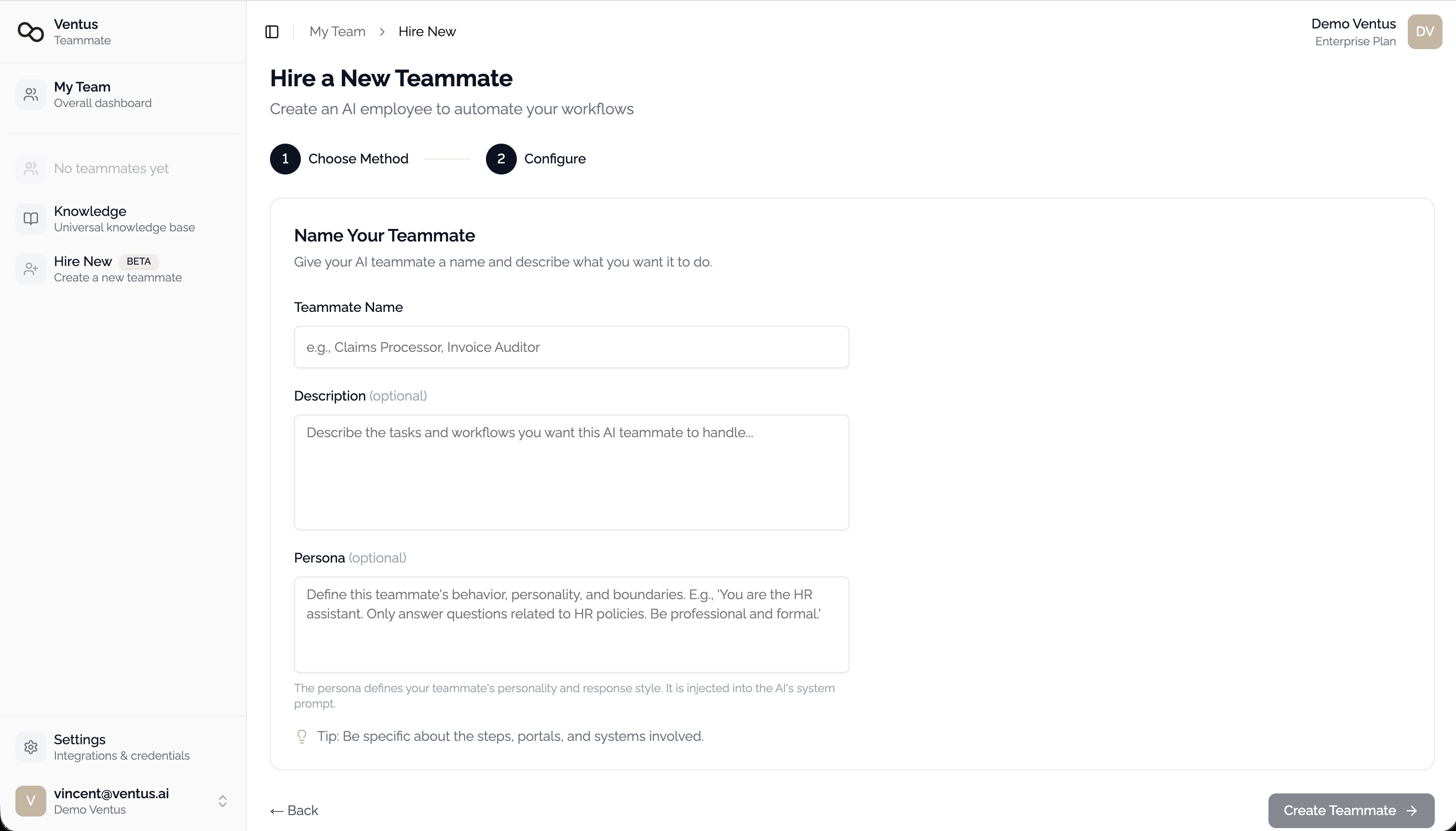
If system integrations are configured at the company level, you will also see System Access toggles at the bottom of this form. See System Access for details.
Step 3: Review and Create
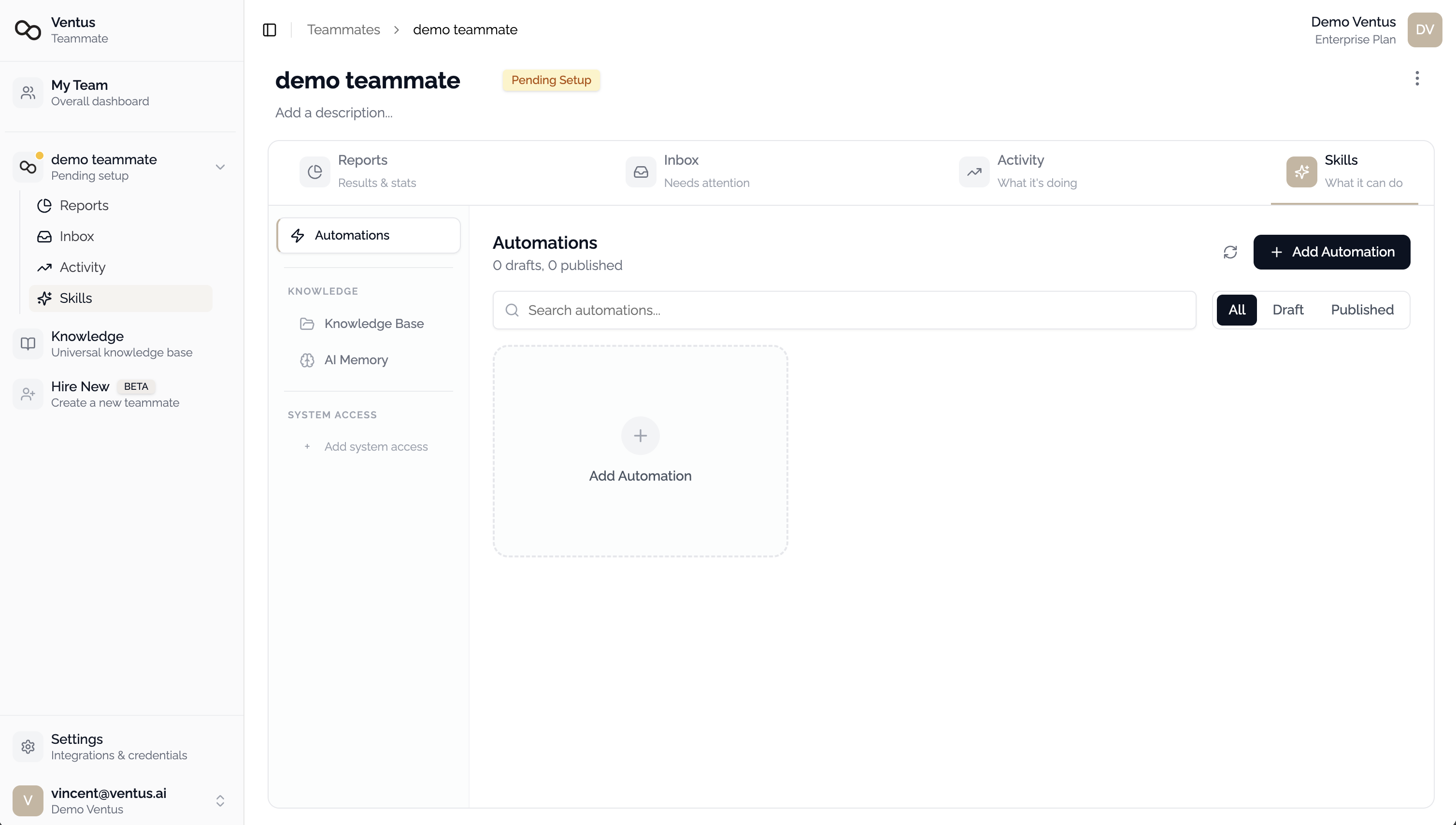
Click Create Teammate. You will be redirected to the teammate detail page, which includes:
- Reports — Performance metrics and usage dashboard
- Inbox — Items requiring attention
- Activity — Real-time log of teammate actions
- Skills — Knowledge bases, automations, and system integrations
Next Steps
- Create a Knowledge Base to give your teammate reference material
- Grant Knowledge Access to connect knowledge bases to the teammate
- Connect a Channel to deploy the teammate to Slack, Teams, or WhatsApp