
Grant Knowledge Access
Control which knowledge bases each AI teammate can search when answering questions.
Knowledge access determines which knowledge bases a teammate can search. A teammate without knowledge access will not be able to reference any documents when responding to questions.
Knowledge bases are managed at the company level and shared through access grants:
- One knowledge base can be accessed by multiple teammates
- One teammate can access multiple knowledge bases
- Access can be granted or revoked at any time
There are two ways to manage access — from the knowledge base side, or from the teammate side.
Option A: From the Knowledge Base
Step 1: Open Manage Access
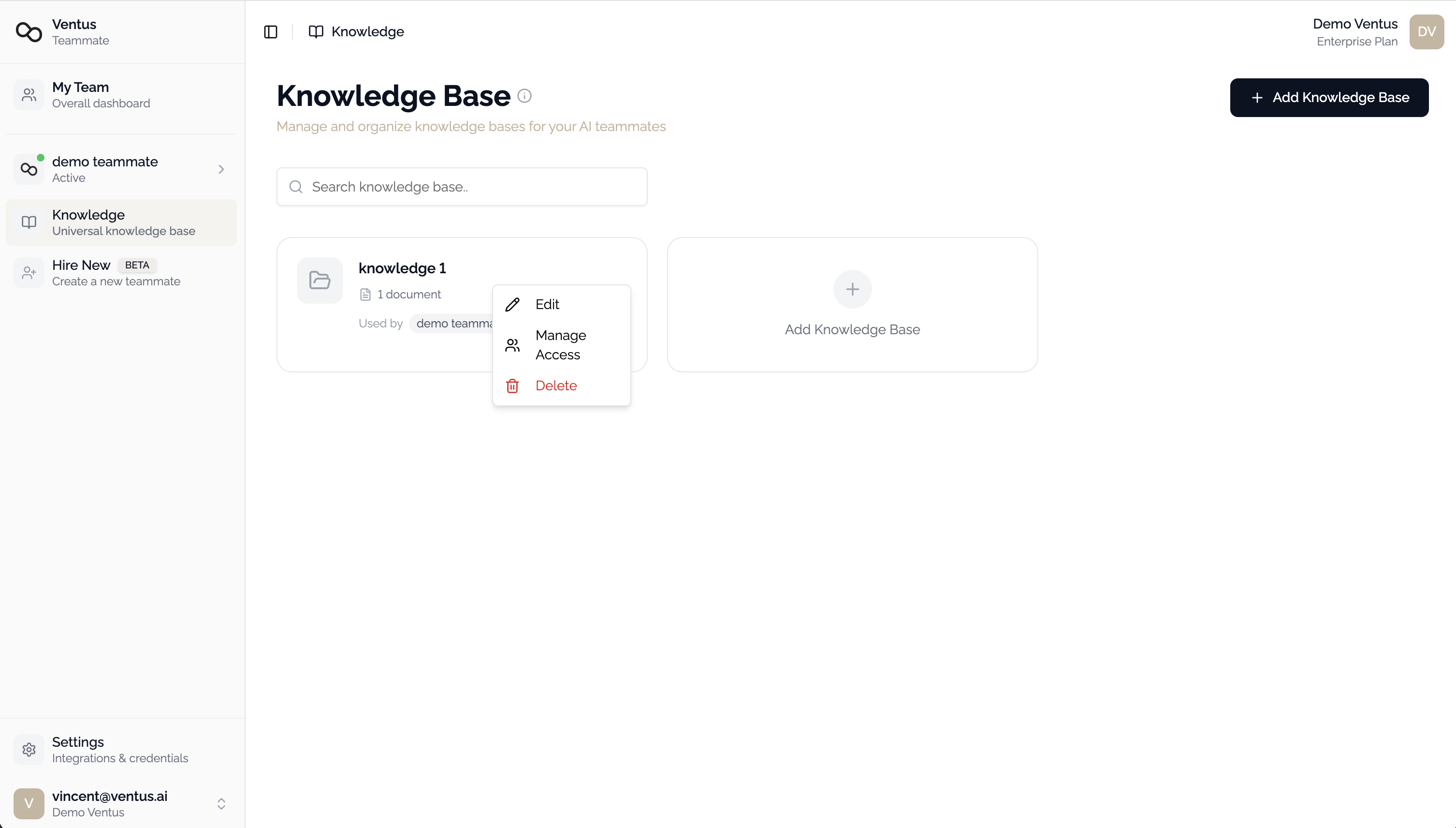
Navigate to prime.ventus.ai/teammate/knowledge.
Find the knowledge base you want to manage, click the ... menu, and select Manage Access.
Step 2: Select Teammates
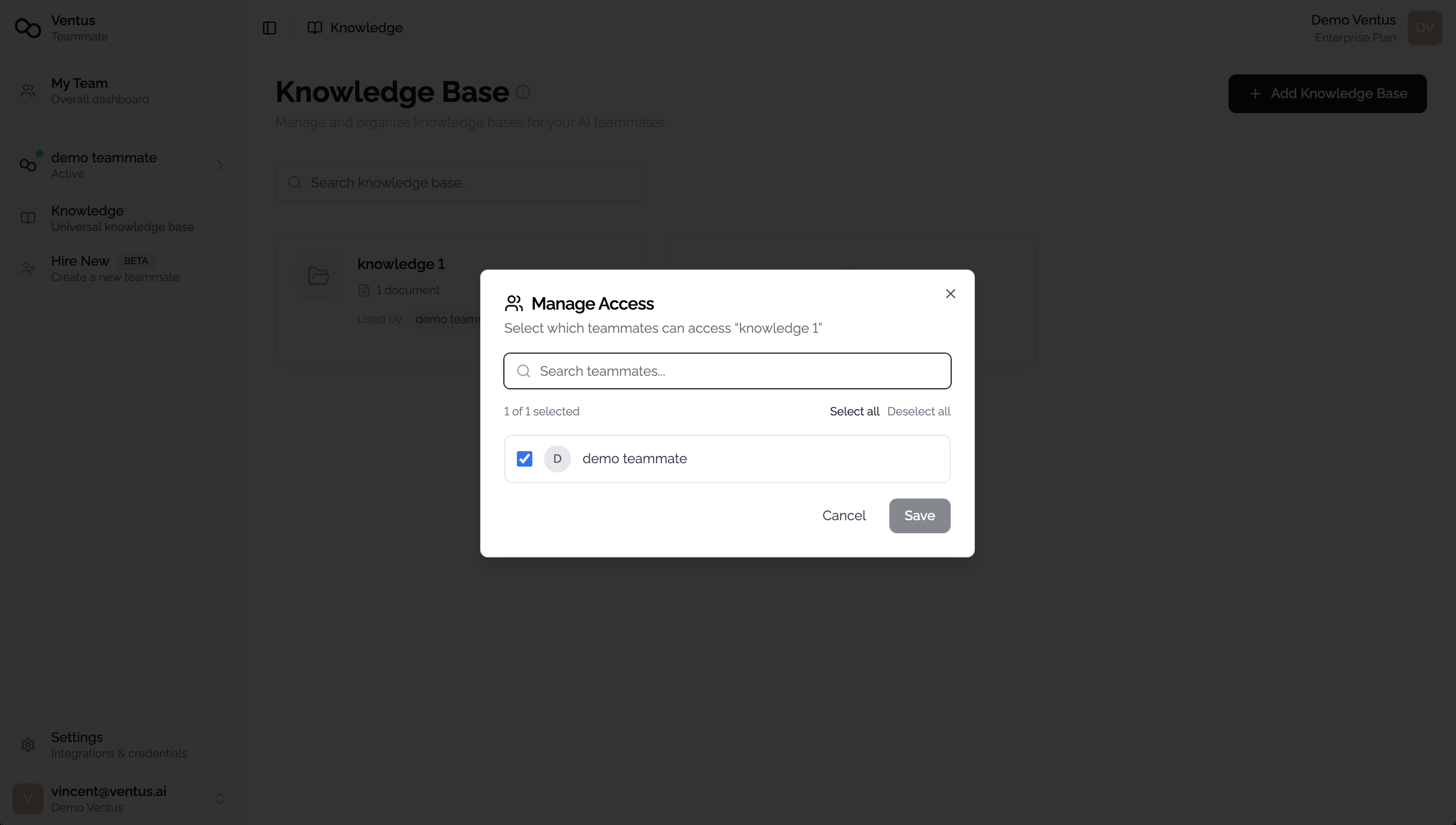
In the Manage Access dialog, you will see all teammates in your organization. Use the checkboxes to grant or revoke access.
- Search teammates by name
- Select All or Deselect All for bulk changes
- The dialog shows a count summary (e.g., "3 of 5 selected")
Click Save to apply.
Option B: From the Teammate
Step 1: Open the Skills Tab
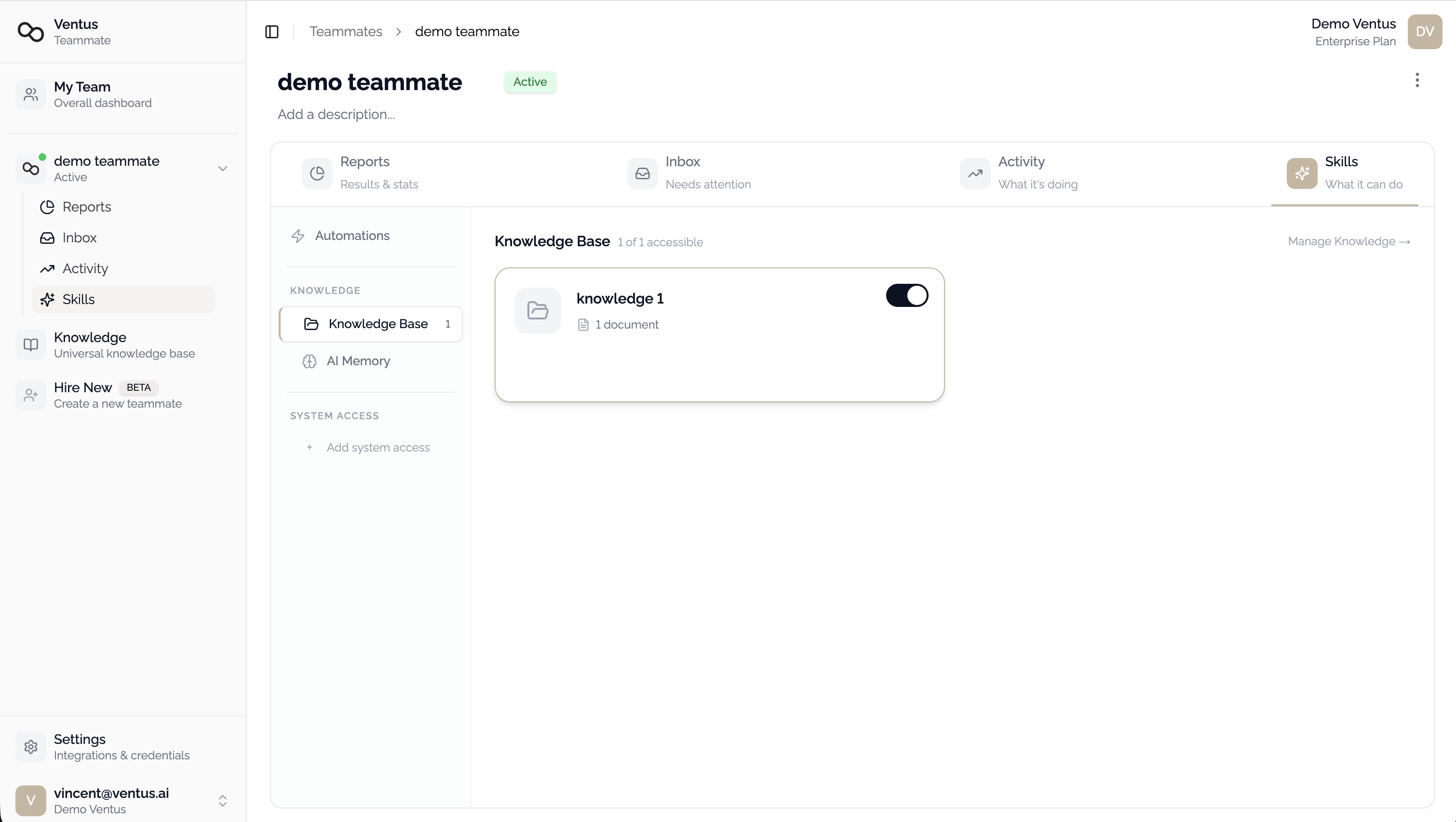
Navigate to the teammate detail page at prime.ventus.ai/teammate/{teammateId}.
Click the Skills tab, then select Knowledge Base in the sub-navigation.
Step 2: Toggle Access
Each knowledge base is displayed as a card showing the name, description, and document count. Use the toggle switch on each card to enable or disable access.
Importing from Google Drive
If your organization uses Google Drive to manage documents, you can connect Google Drive at the company level and import files directly into knowledge bases. Imported files support auto-sync, so updates in Google Drive are automatically reflected in the knowledge base.
To set up Google Drive integration:
- Navigate to Settings > Integrations
- Click Connect under Google Docs in the Knowledge section
- Complete the Google OAuth authorization flow
Once connected, the Import from Google Drive option becomes available when adding documents to any knowledge base. See Create a Knowledge Base for the full upload workflow.
Google Drive import is the recommended approach for teams that maintain documentation in Google Workspace. It ensures your knowledge base always reflects the latest version of your documents.
Verifying Access
| Where | What to Check |
|---|---|
| Knowledge Base page | The "Used by" section on each card shows which teammates have access |
| Teammate Skills tab | The Knowledge Base section header displays "X of Y accessible" |
Next Steps
- Connect a Channel to deploy the teammate to Slack, Microsoft Teams, or WhatsApp
- System Access to connect external systems for real-time data queries