
Onboarding
Roles & Permissions
Understand roles, permissions, and how to control what team members can access.
Roles control what each team member can see and do within Ventus Prime. Assign roles when inviting team members, or change them at any time from the Team Members settings.
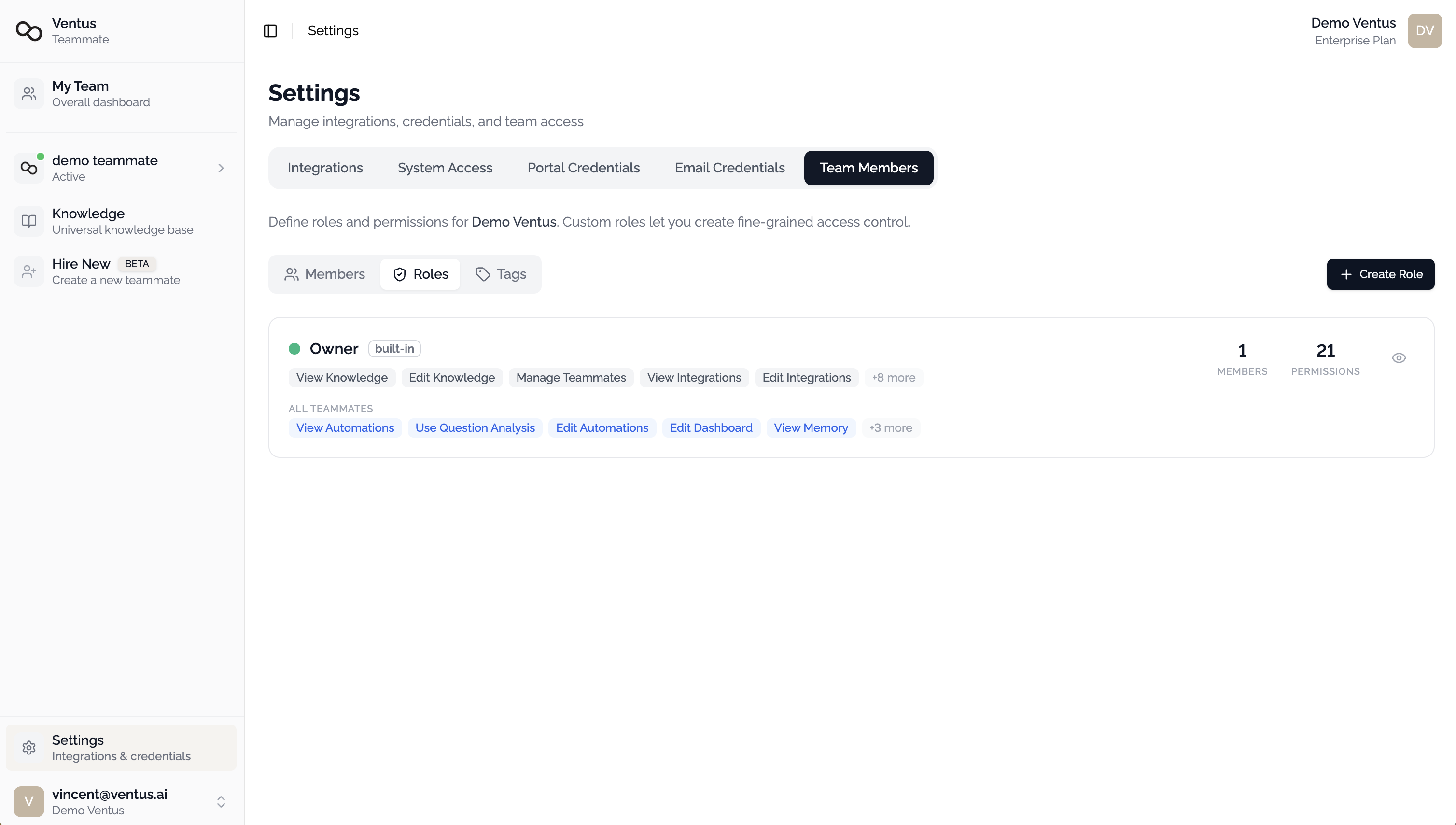
Creating Roles
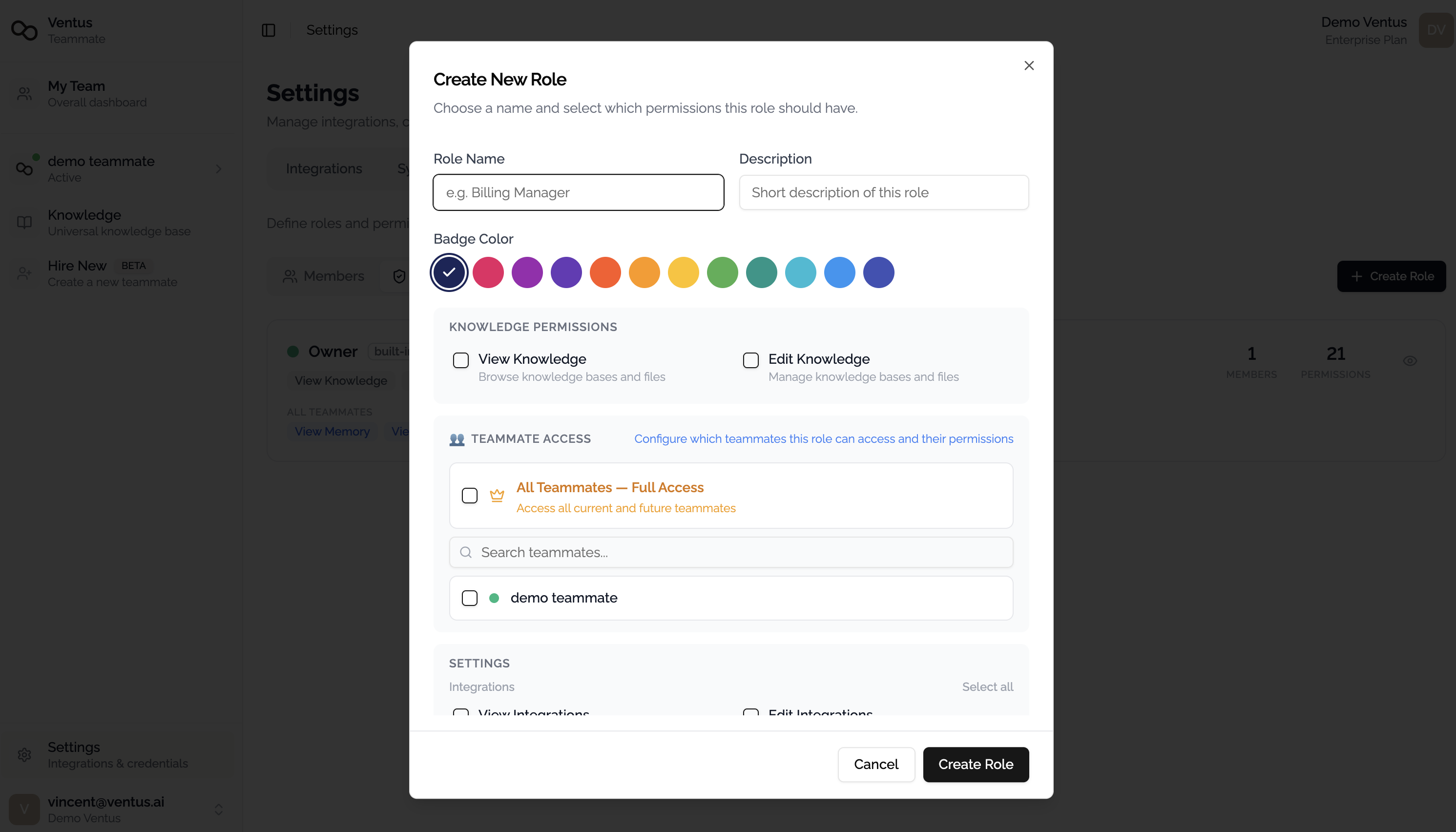
Administrators can create roles with specific permissions to match your organization's needs.
To create a role:
- Navigate to Settings > Team Members > Roles
- Click Create Role
- Enter a role name and optional description
- Select the permissions this role should have
- Click Save
Permissions Reference
Organization Permissions
These permissions apply globally across the organization:
| Permission | Description |
|---|---|
| Manage Teammates | Create, edit, and delete AI teammates |
| View Knowledge | View knowledge bases and documents |
| Edit Knowledge | Create, edit, and manage knowledge bases and documents |
| View Integrations | View connected platforms and system access settings |
| Edit Integrations | Connect and disconnect communication platforms and integrations |
| View Team Members | View the team members list and roles |
| Edit Team Members | Invite, remove, and manage team member roles |
Teammate Permissions
These permissions can be configured per teammate, allowing fine-grained access control:
| Permission | Description |
|---|---|
| View Dashboard | Access performance reports and metrics for a teammate |
| View Automations | View automation workflows configured for a teammate |
| Edit Automations | Create and modify automation workflows |
| View Memory | View a teammate's learned knowledge and memory |
| Edit Memory | Manage a teammate's learned knowledge |
Assigning Roles
During Invitation
When inviting a team member, select a role from the dropdown. If no role is assigned, the member joins without specific permissions until a role is set.
After Joining
To change a member's role:
- Navigate to Settings > Team Members
- Find the team member in the list
- Click their current role to open the role selector
- Select the new role