
Invite Team Members
Invite your team to Ventus Prime so they can interact with AI teammates.
Before your team can use AI teammates, they need to be invited to your Ventus Prime organization. Once invited, team members receive an email to set up their account and can then connect their communication channels.
Prerequisites
- A Ventus Prime admin account with the Edit Team Members permission
- The email addresses of the people you want to invite
Step 1: Open Team Members Settings
Navigate to Settings > Team Members.
You will see a list of all current team members, their roles, status, and when they joined.
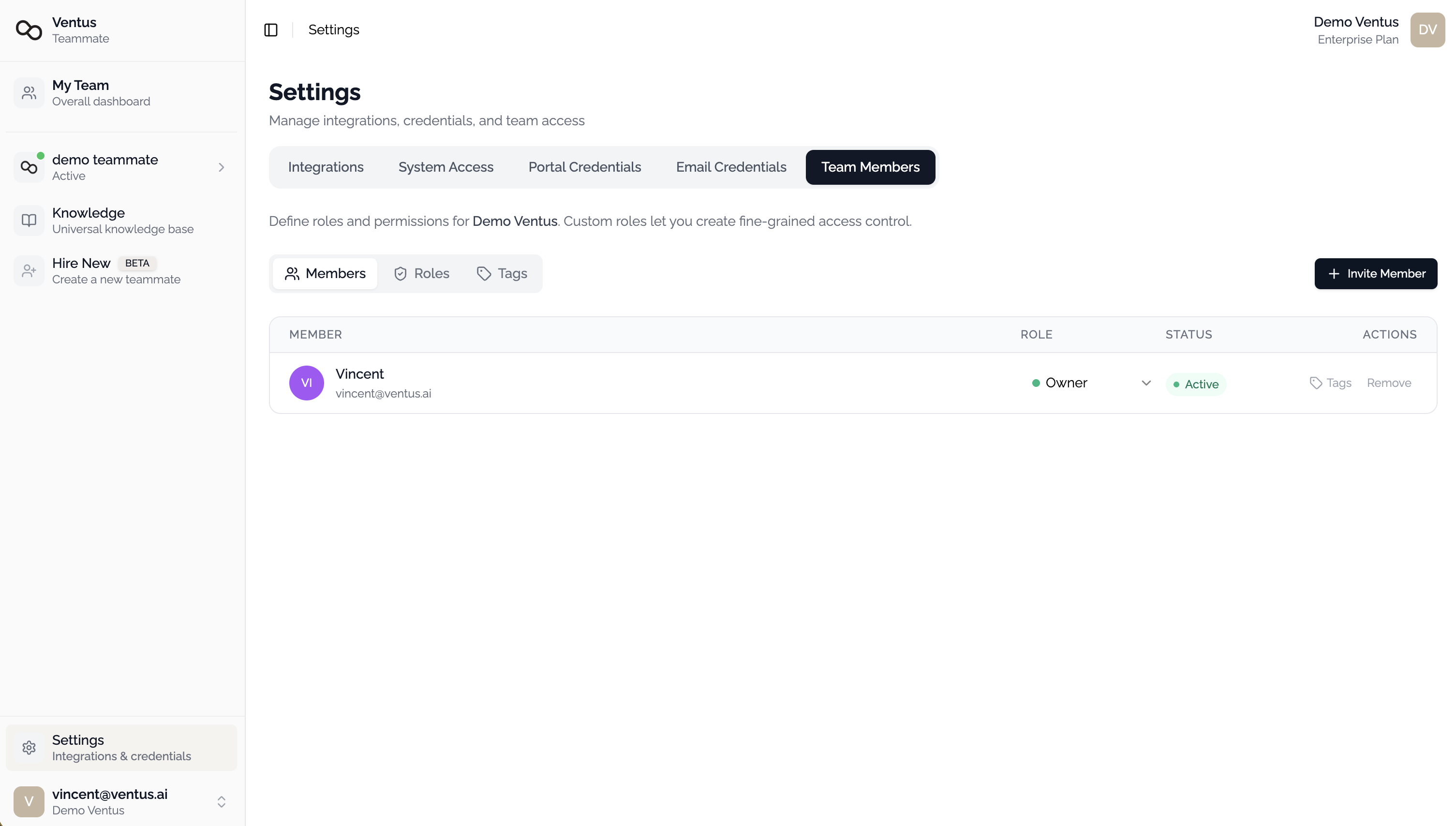
Step 2: Send Invitations
Click Invite Member to open the invitation dialog.
| Field | Required | Description |
|---|---|---|
| Email Address | Yes | The email of the person you want to invite. You can invite multiple people at once. |
| Role | No | Assign a role to control what the member can access. Can be changed later. See Roles & Permissions. |
Click Send Invitation to send the email.
Step 3: Team Member Sets Up Their Account
The invited person receives an email with a link to set their password:
- Open the email and click the setup link
- Create a password for their Ventus Prime account
- Log in at prime.ventus.ai
The setup link expires after 24 hours. If it expires, you can resend the invitation from the Team Members page.
Step 4: Connect a Communication Channel
After joining, each team member connects their communication account so the AI teammate can identify them:
| Platform | How to Connect |
|---|---|
| Slack | Mention @Ventus Prime in a connected Slack channel. A link will appear to bind the account. |
| Microsoft Teams | Mention @Ventus Prime in a Teams channel. A link will appear on first use to bind the account. |
| Message +1 (213) 934-7080 on WhatsApp. A binding link will be sent to link the account. |
See the platform-specific guides for details: Slack, Microsoft Teams, WhatsApp.
Managing Team Members
From the Team Members page, you can:
| Action | Description |
|---|---|
| Resend Invitation | Resend the invitation email to a pending member |
| Change Role | Update a member's role to adjust their permissions |
| Remove Member | Remove a member from your organization |
Invitation Status
| Status | Meaning |
|---|---|
| Active | Member has accepted the invitation and is part of the organization |
| Pending | Invitation sent but not yet accepted |
| Inactive | Member has been deactivated |