
Slack Integration
Connect Ventus AI to your Slack workspace and start chatting with your AI teammates in channels.
Overview
The Slack integration lets your team interact with AI teammates directly in Slack channels. Once connected, you can mention the bot or send messages in configured channels to get answers from your organization's knowledge bases and connected systems.
Prerequisites
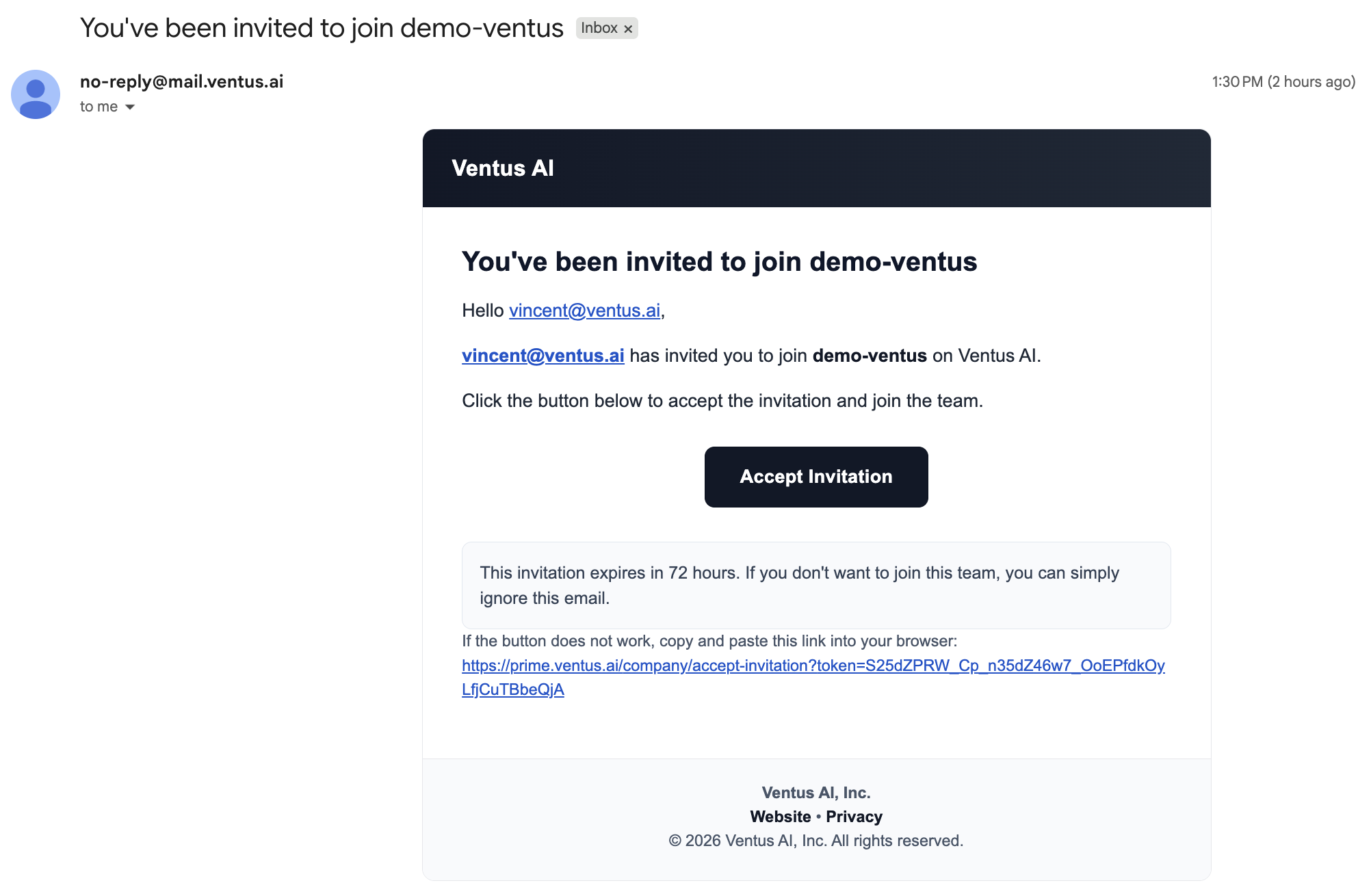
- You have received an invitation email from your organization's administrator and accepted it — this means your Ventus Prime account is ready
- Slack workspace admin approval for the Ventus Prime app
- Edit Integrations permission (for the administrator connecting the workspace)
- At least one AI teammate created with knowledge base access
Setup Steps
| Step | Description |
|---|---|
| 1 | Connect Slack — An administrator connects your Slack workspace to Ventus Prime |
| 2 | Configure channels — Choose which Slack channels the AI teammate should respond in |
| 3 | Start chatting — Mention the bot or send a message in a connected channel |
Before connecting Slack, make sure you have at least one AI teammate created and configured with knowledge base access.
Step 1: Connect Your Slack Workspace
- Log in to prime.ventus.ai
- Navigate to Settings > Integrations
- Find Slack under the Communication section and click Connect
- You will be redirected to Slack's OAuth authorization page — review the permissions and click Allow
- After authorization, your Slack workspace will appear as connected in the Integrations tab
Connecting Slack requires the Edit Integrations permission and Slack workspace admin approval.
Step 2: Add Slack Channels to a Teammate
After connecting your workspace, configure which channels each AI teammate should monitor:
- Navigate to your teammate's detail page
- Click Add Channel and select Slack as the platform
- Choose your connected workspace
- Select one or more channels for the teammate to respond in
- Configure which knowledge bases the teammate should use in each channel
See Connect a Channel for more details on channel configuration.
Step 3: Start Chatting
In any connected Slack channel, mention the bot to ask a question:
@Ventus Prime What is our PTO policy?The AI teammate will respond using the knowledge bases and system integrations configured for that channel.
Try Asking
Not sure what to ask? Here are a few examples:
- "What is our PTO policy?"
- "How do I submit an expense report?"
- "Does John Smith have an appointment this week?" (requires System Access)
For more examples and tips, see Using Your Teammate.