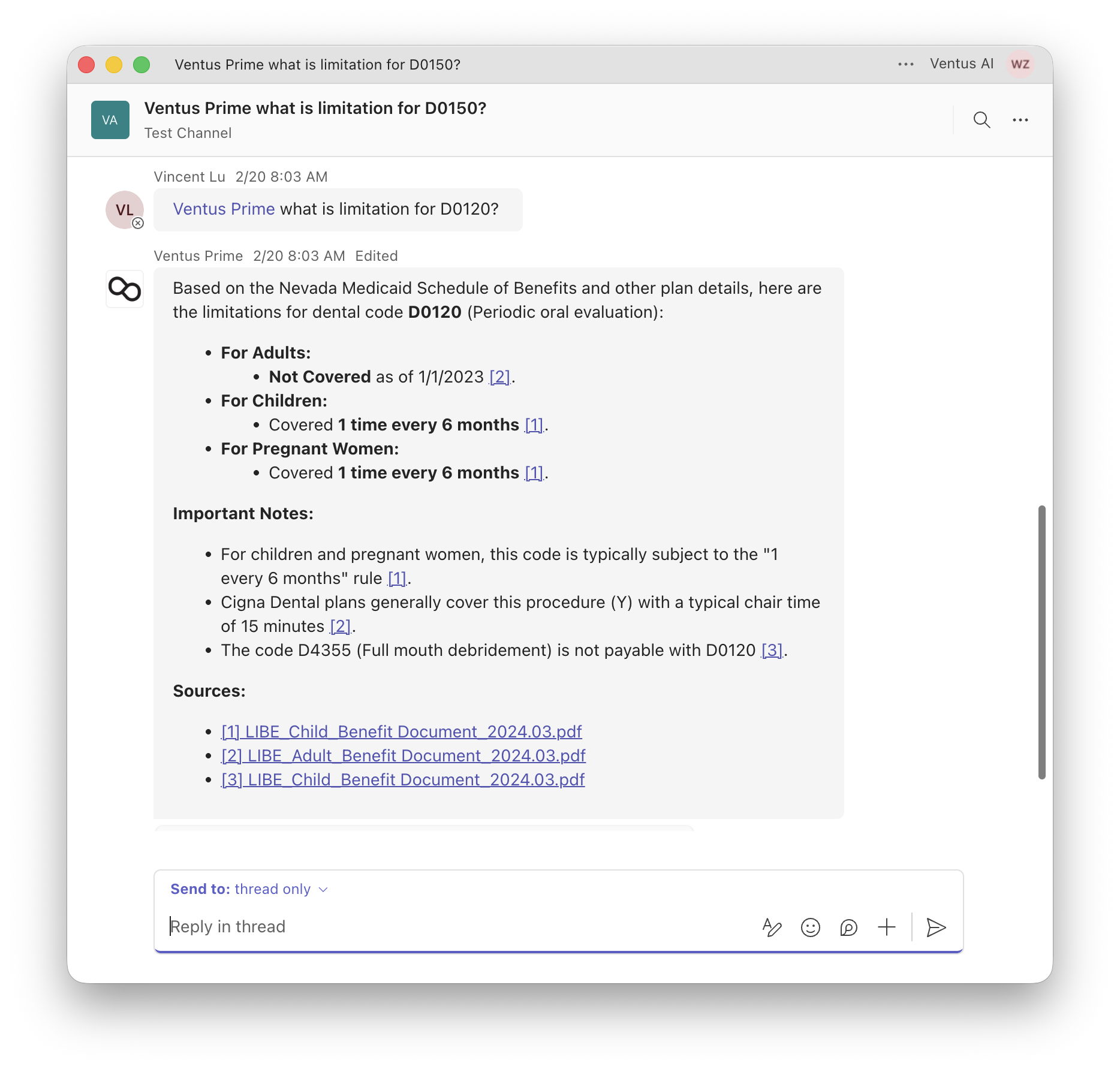
Microsoft Teams
Use Ventus in Teams
Start chatting with your AI teammate in Microsoft Teams channels.
Step 1: Install the Ventus Prime App
Make sure the Ventus Prime app is installed in the Microsoft Teams tenant (organization) you granted access to during the connection step.
Step 2: Mention Ventus in a Channel
In any standard Teams channel, mention:
@Ventus Prime <your question>For example:
@Ventus Prime What can you do?Step 3: Link Your Account (First Time Only)
The first time you use Ventus in Teams, a URL will appear in the response. Open that link in your browser to bind the Teams chat bot to your Ventus Prime account.
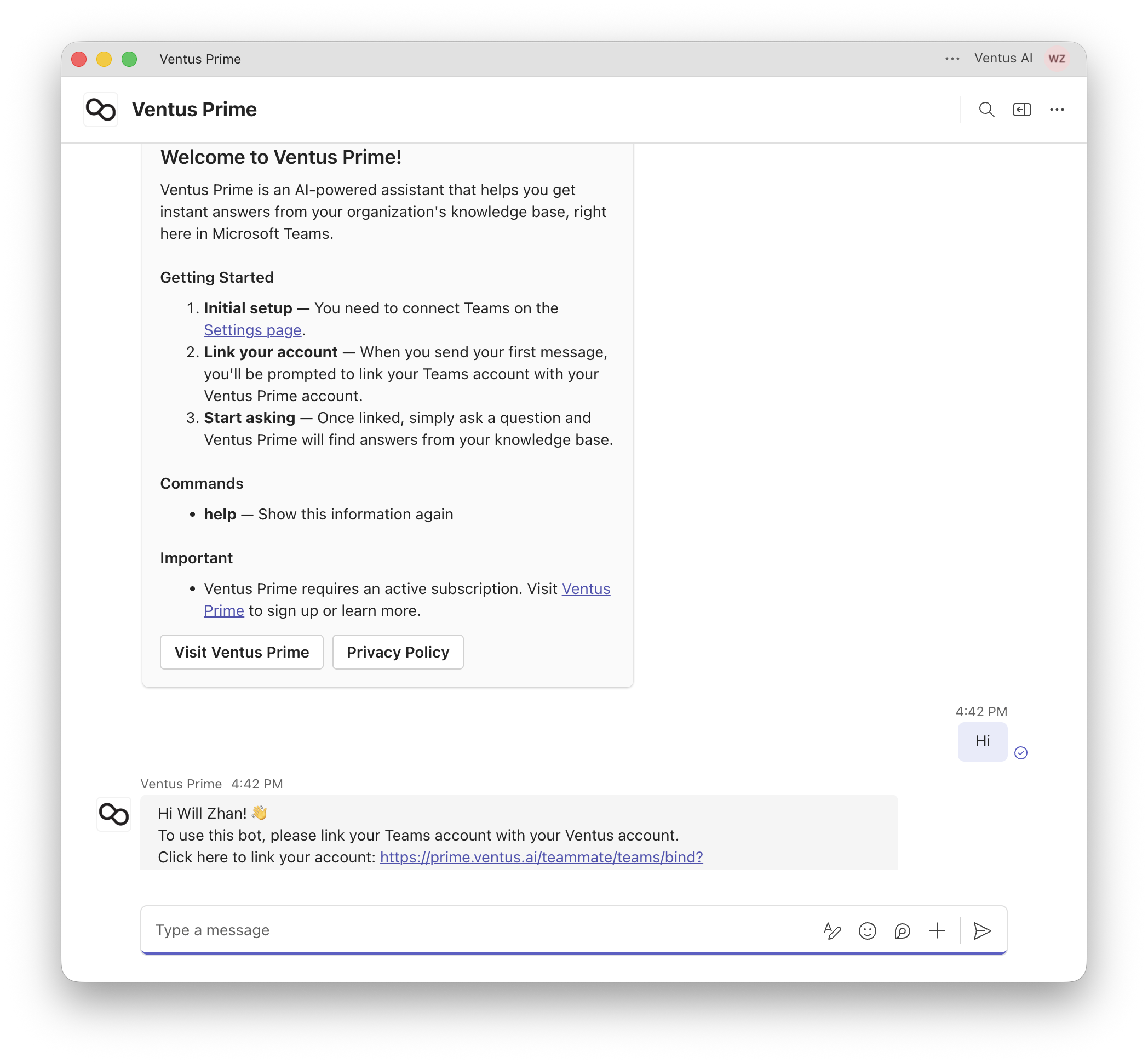
Click the link and confirm to link your account:
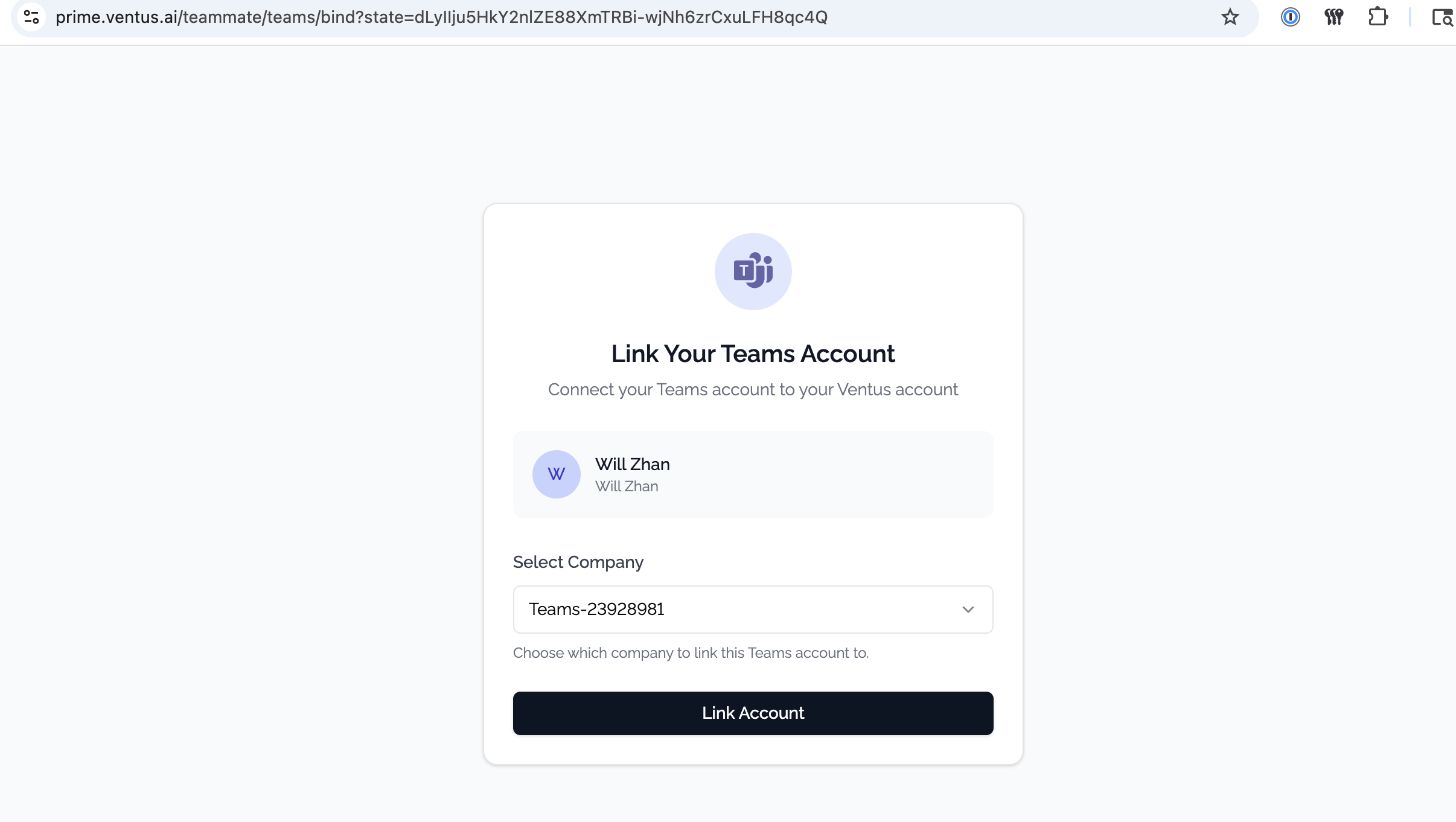
Step 4: Start Using Ventus
After linking, you can chat with Ventus directly in Teams. Your AI teammate will respond using the knowledge bases you configured.